
How to download PBX Theme
Step 1 – Launch your Photobook Express V3 (ver.2023 and above)
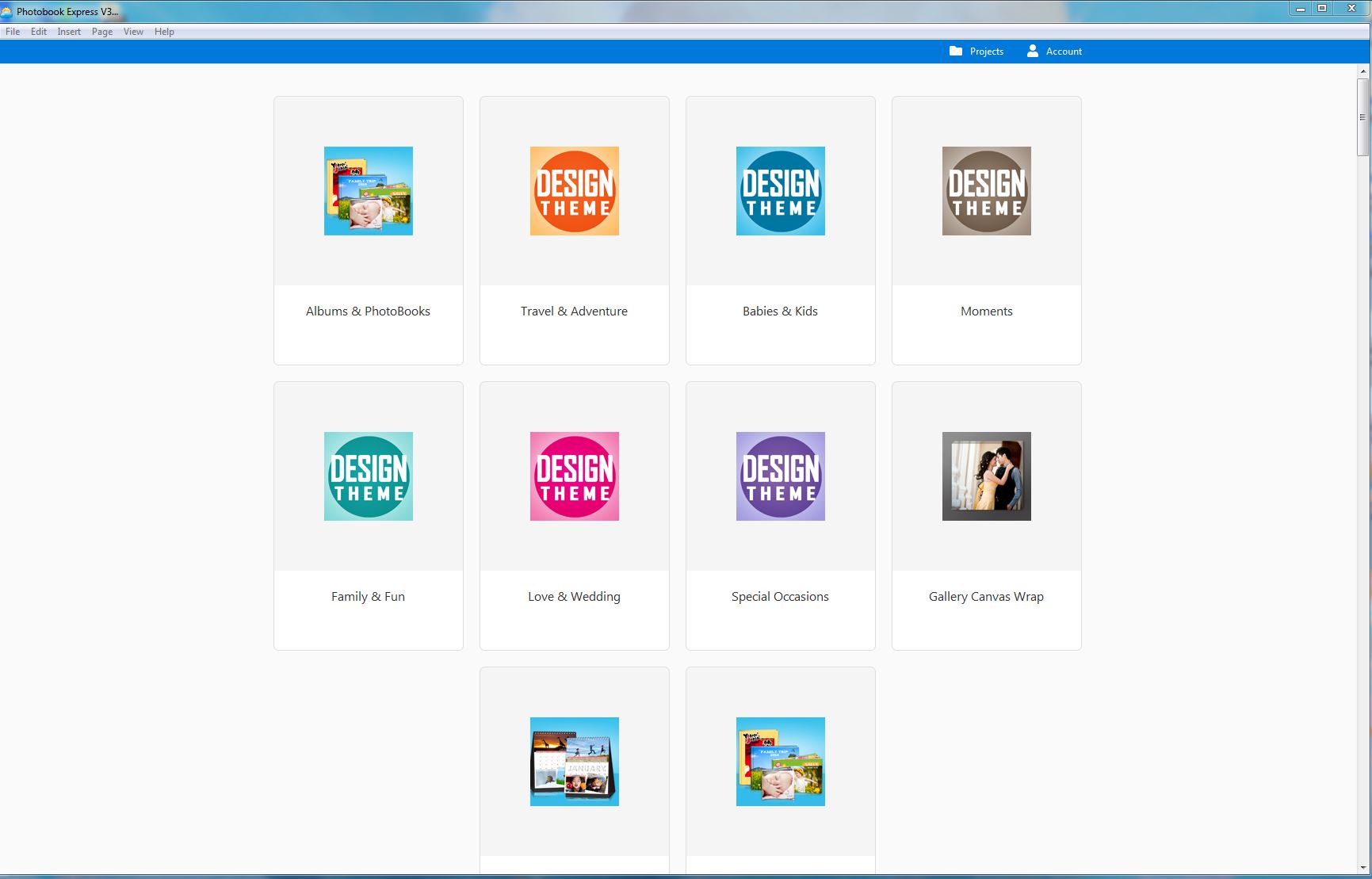
Step 2 – Select the Design Theme Category preference
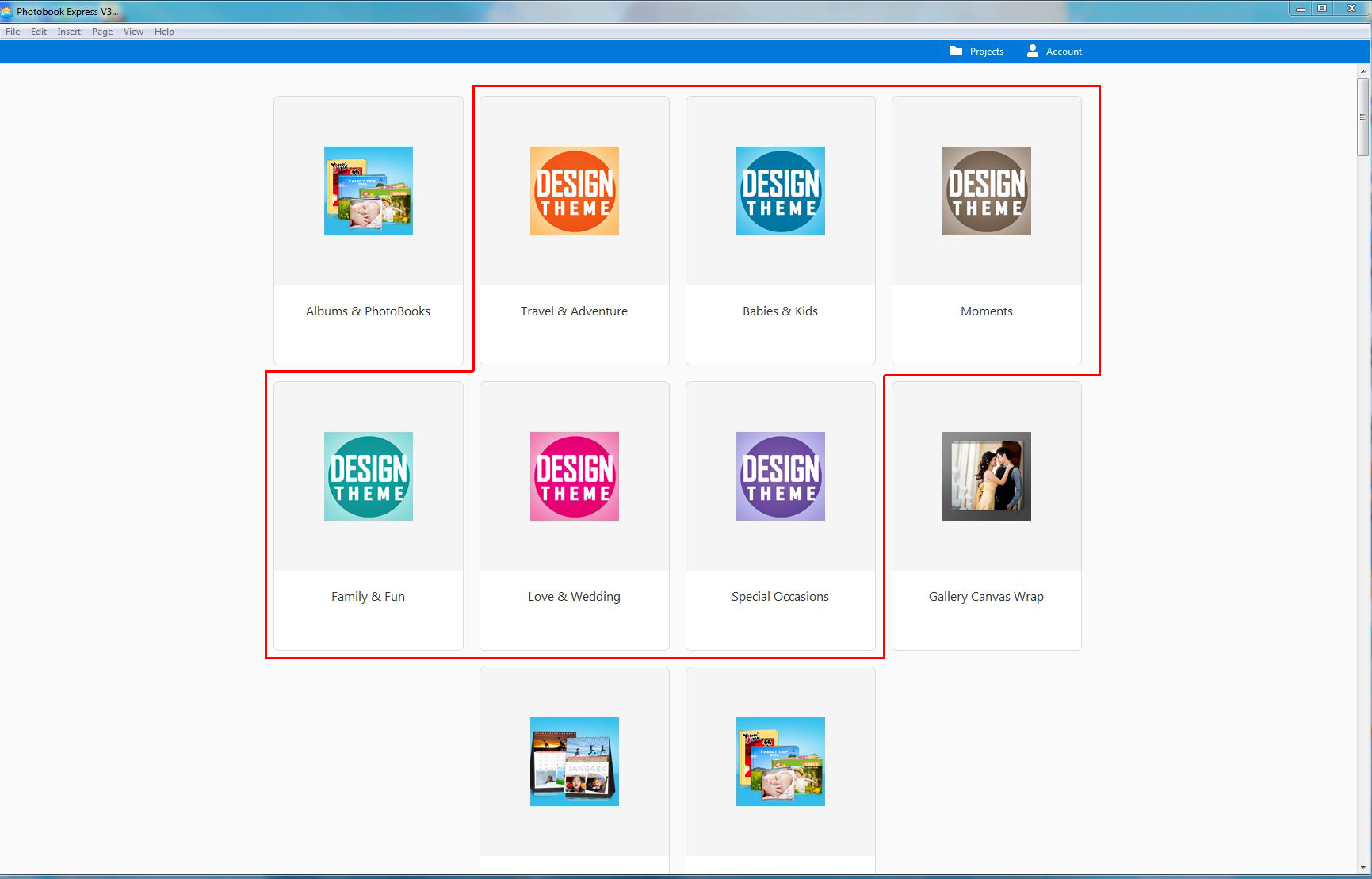
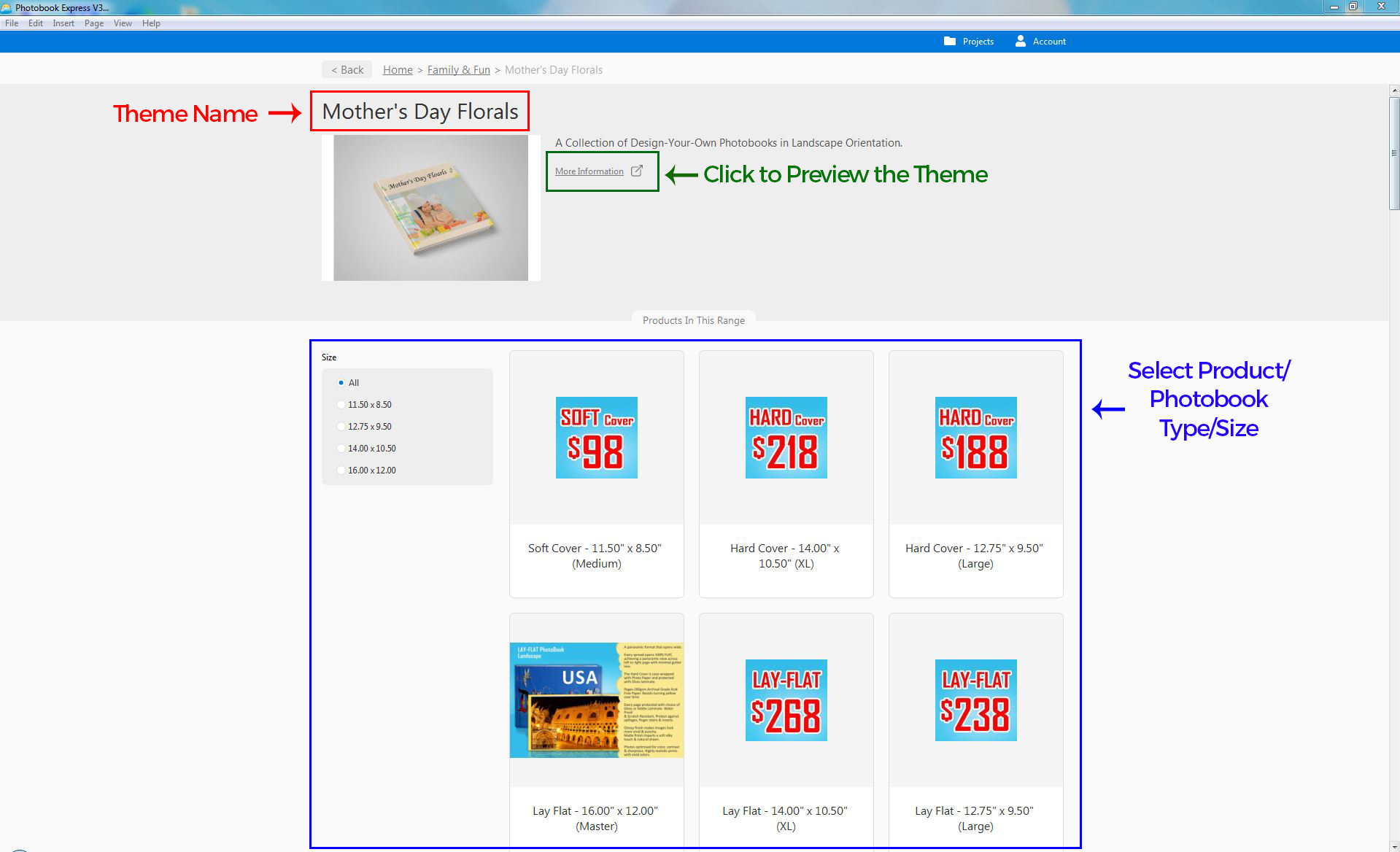
Step 3 – Under the Design Theme Category, (Tutorial will use Family & Fun as reference), Select the Design Theme preference
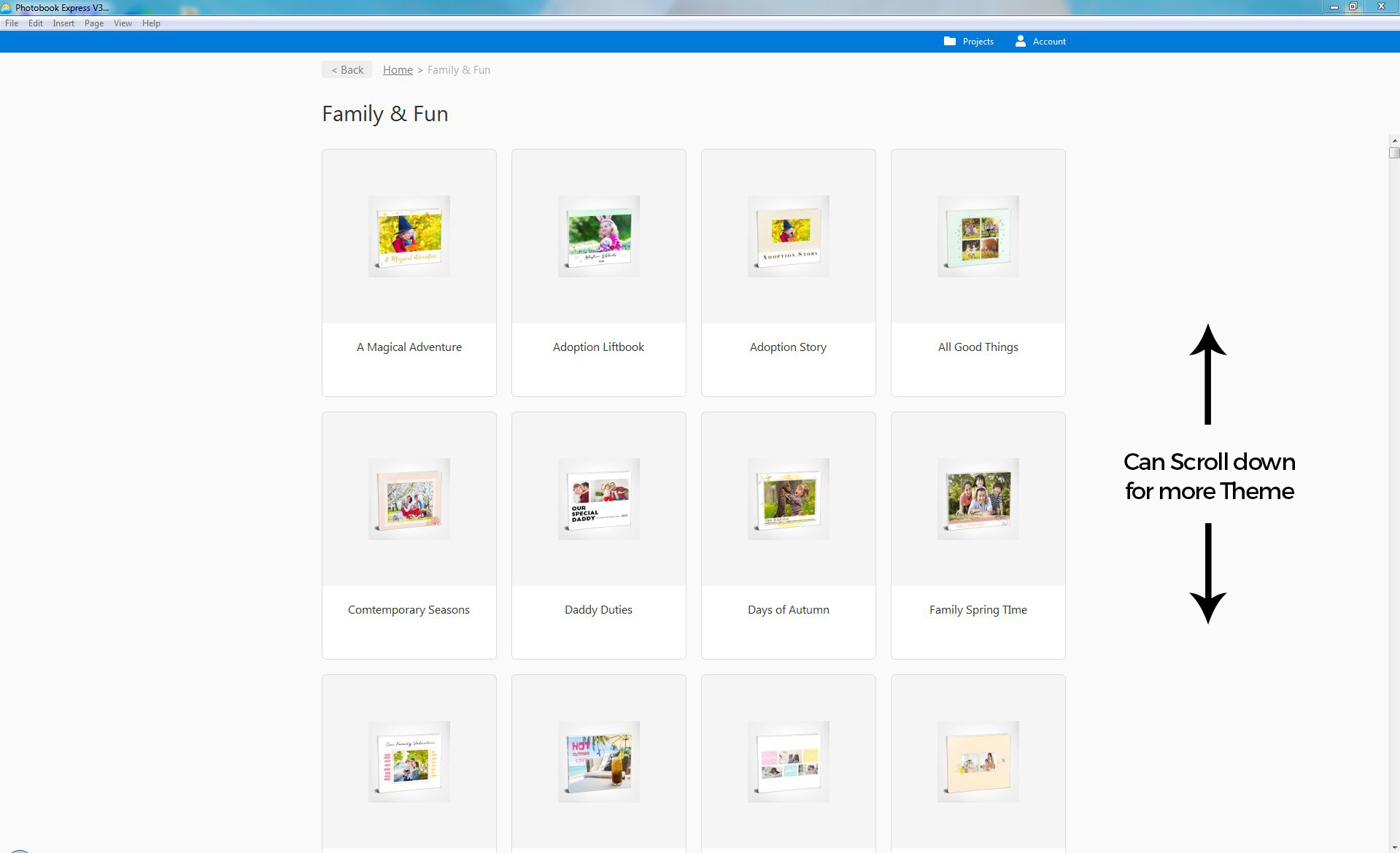
Step 4 – After select the Design Theme, it will link to Theme Page (Tutorial will use Mother’s Day Florals as reference)
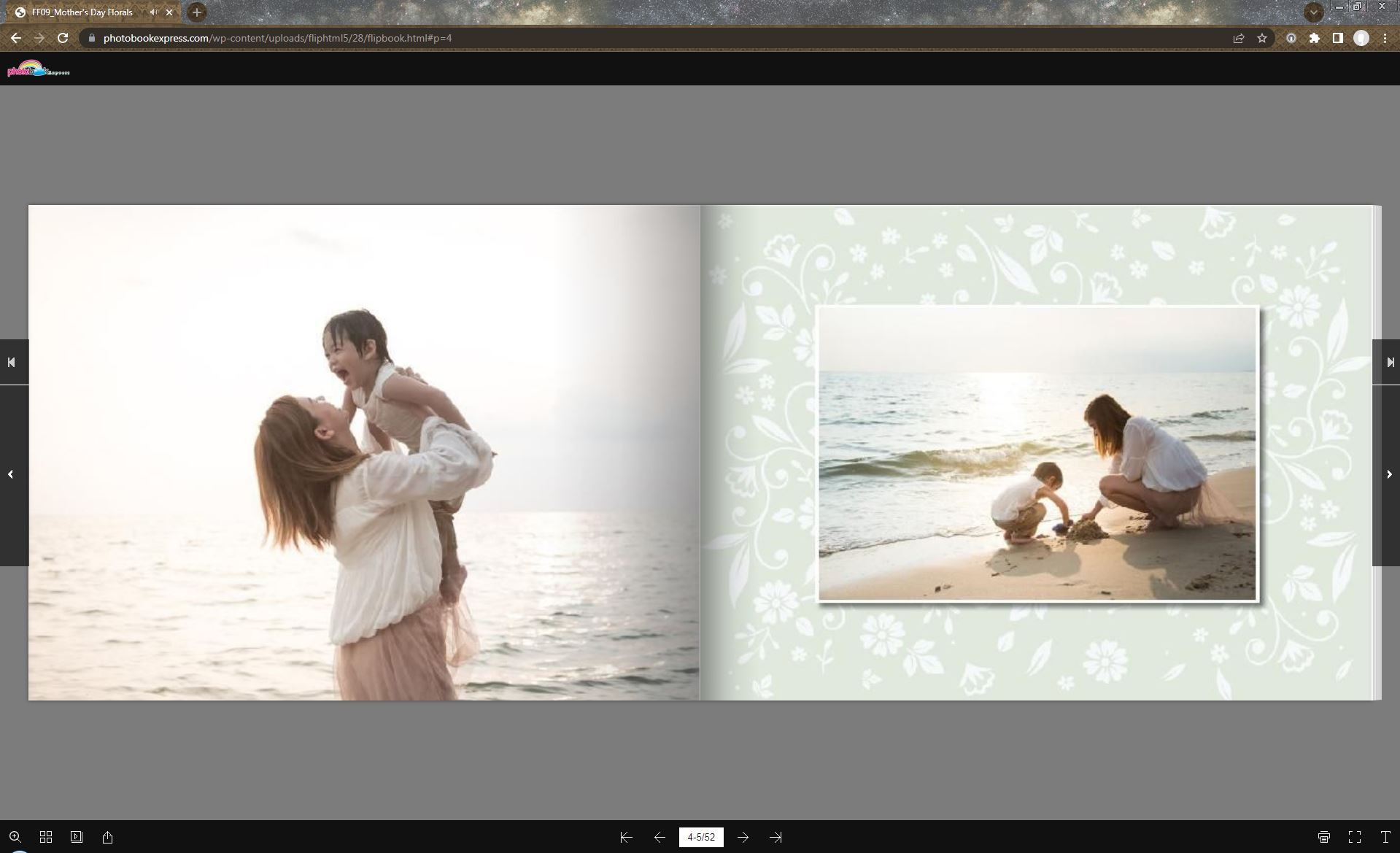
Step 5 – At Theme Page, you can preview the Theme by click the “More Information”
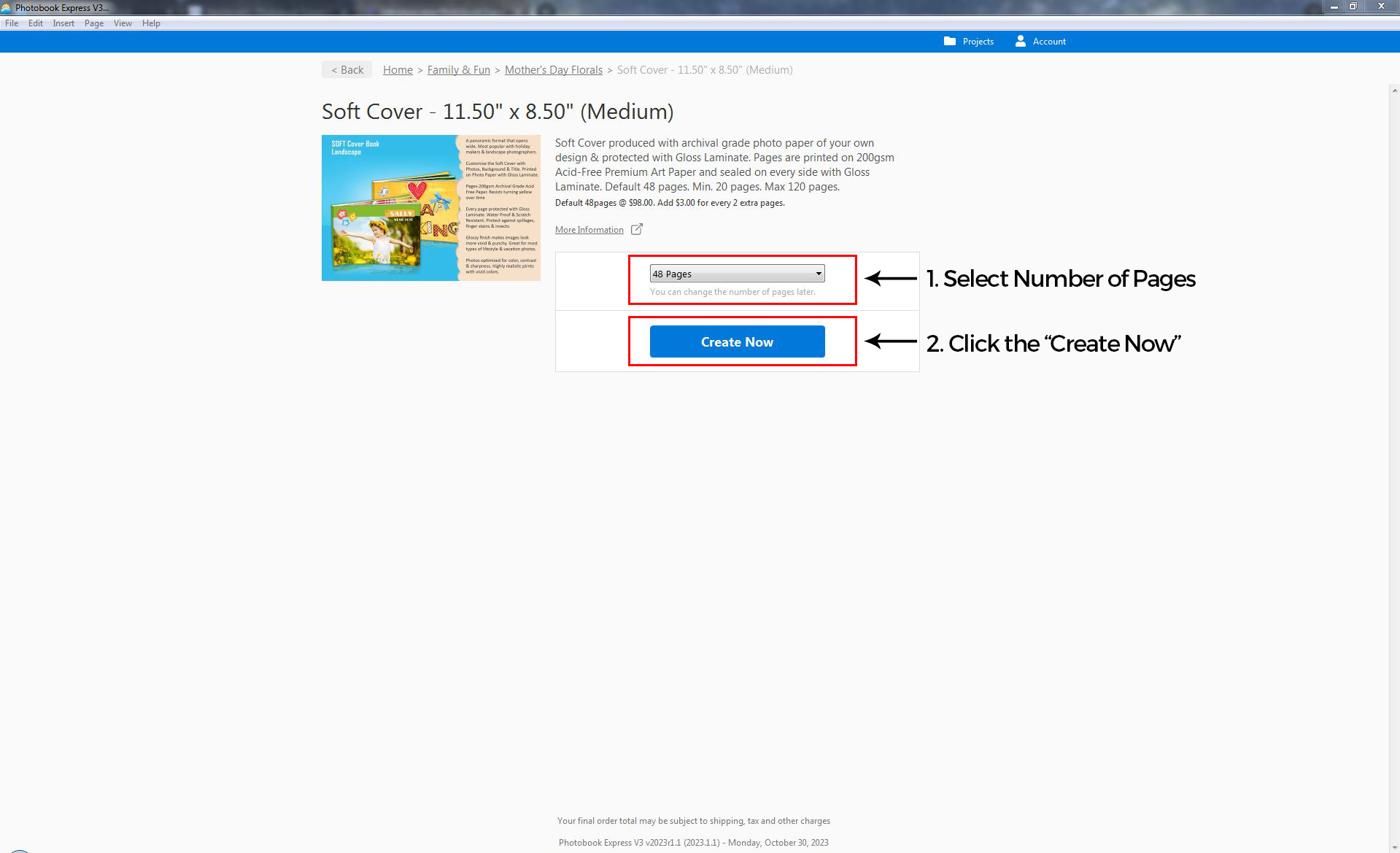
Step 6 – Select the Number of Pages (by default is 48 Pages), and click the “Create Now”
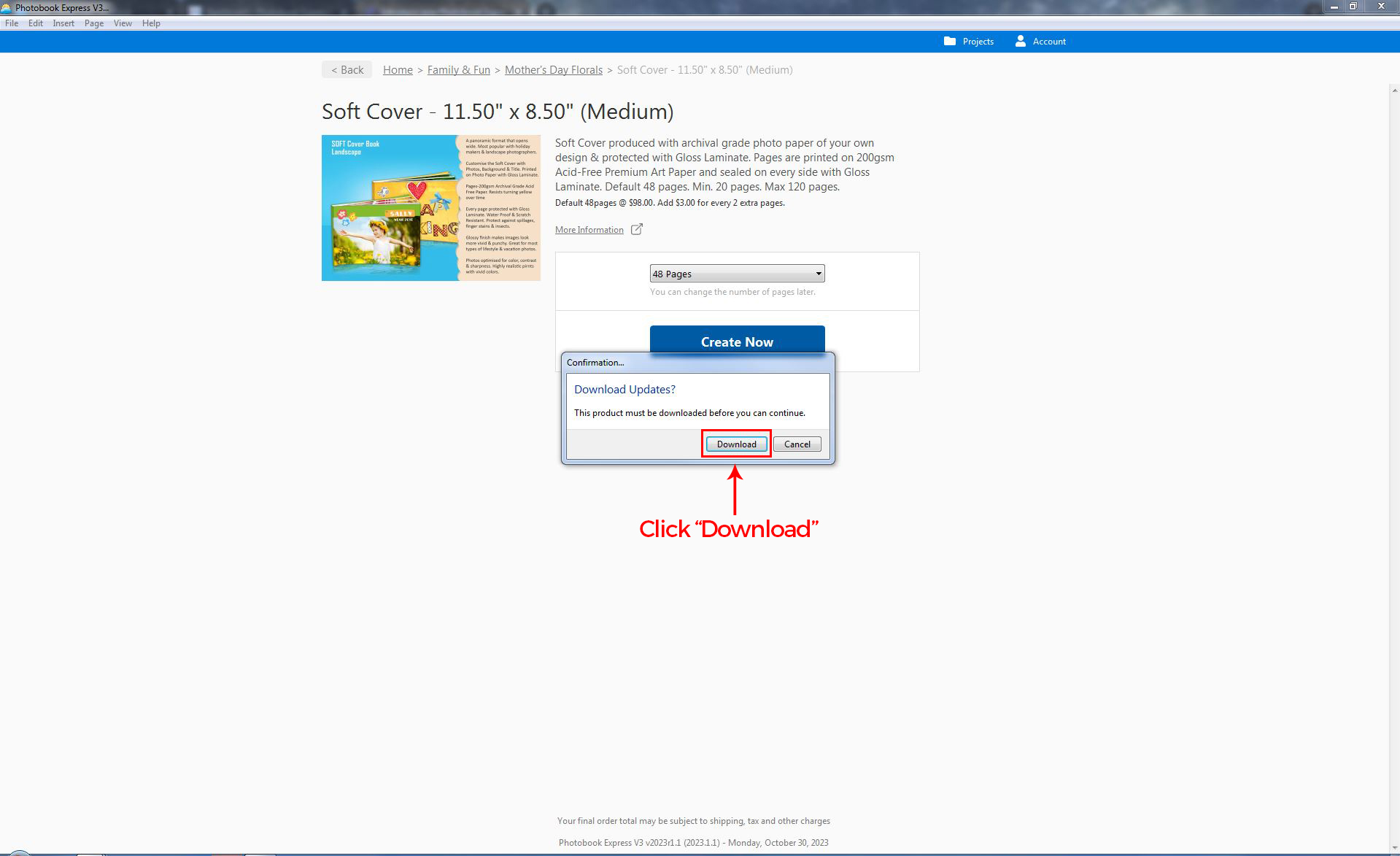
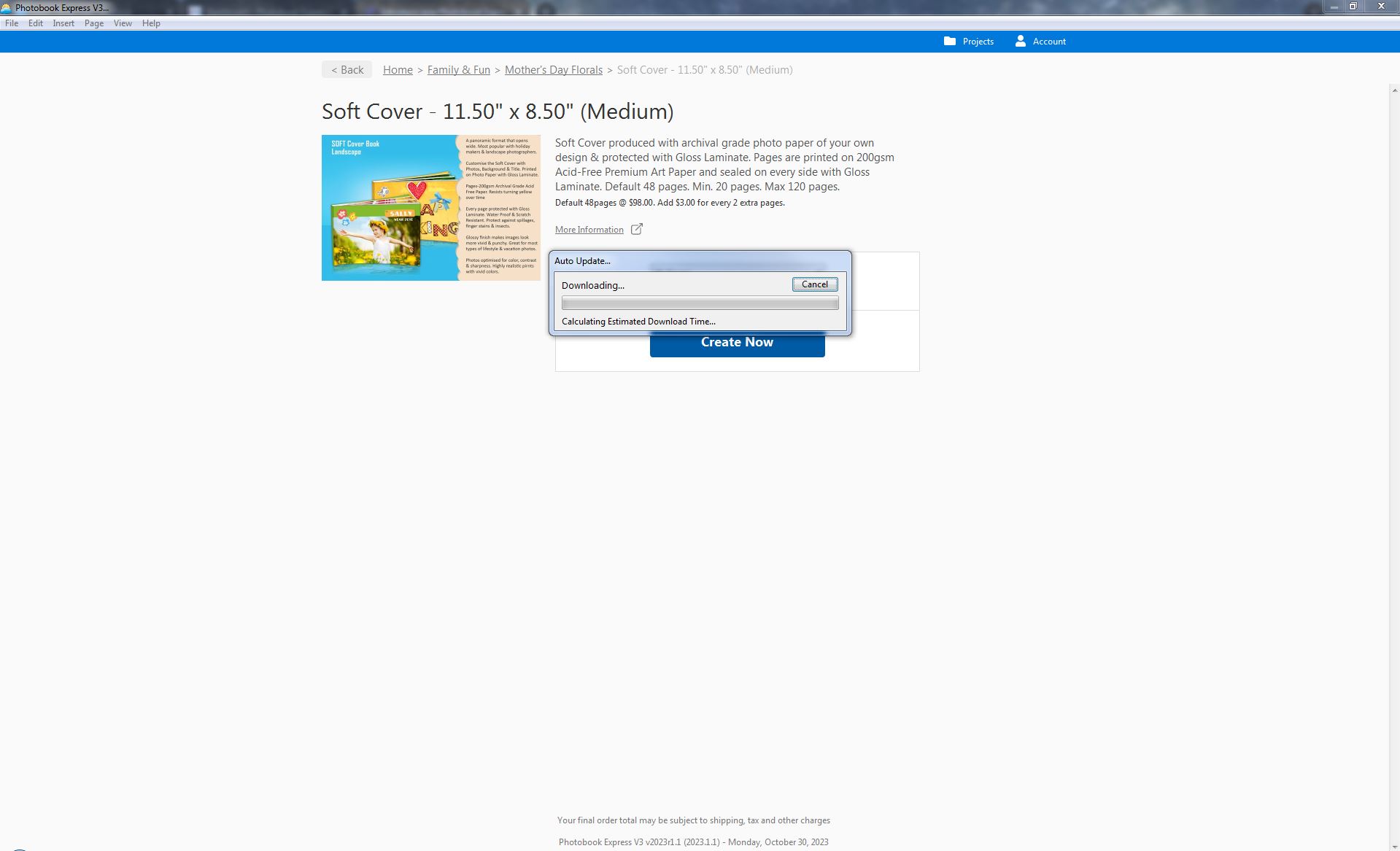
Step 7 – After click the “Create Now”, a confirmation will prompt, click “Download” to start download the Theme
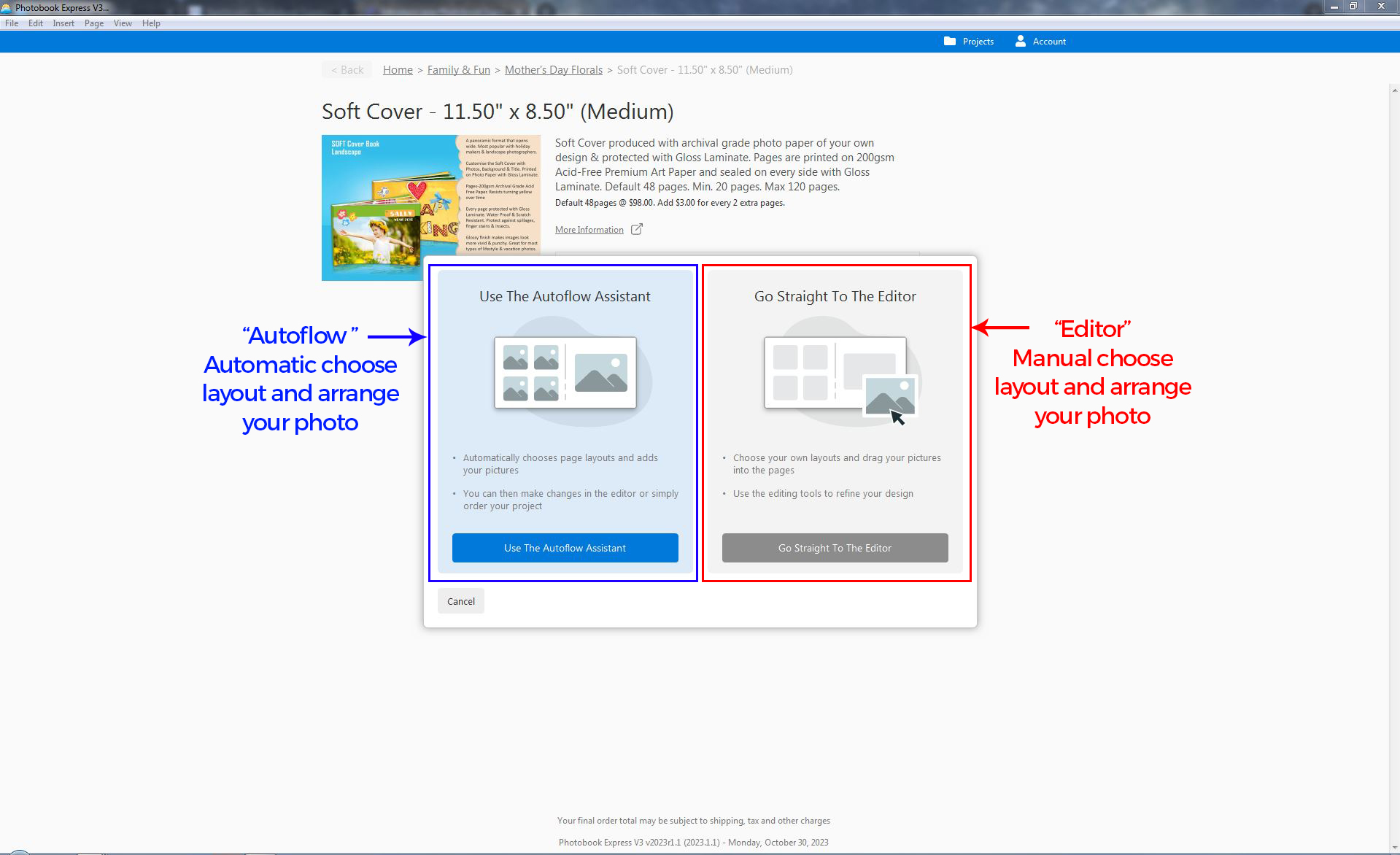
Step 8 – After finish downloaded the Theme, you will asked to select either “Autoflow Assistant” or “Go Straight to the Editor”
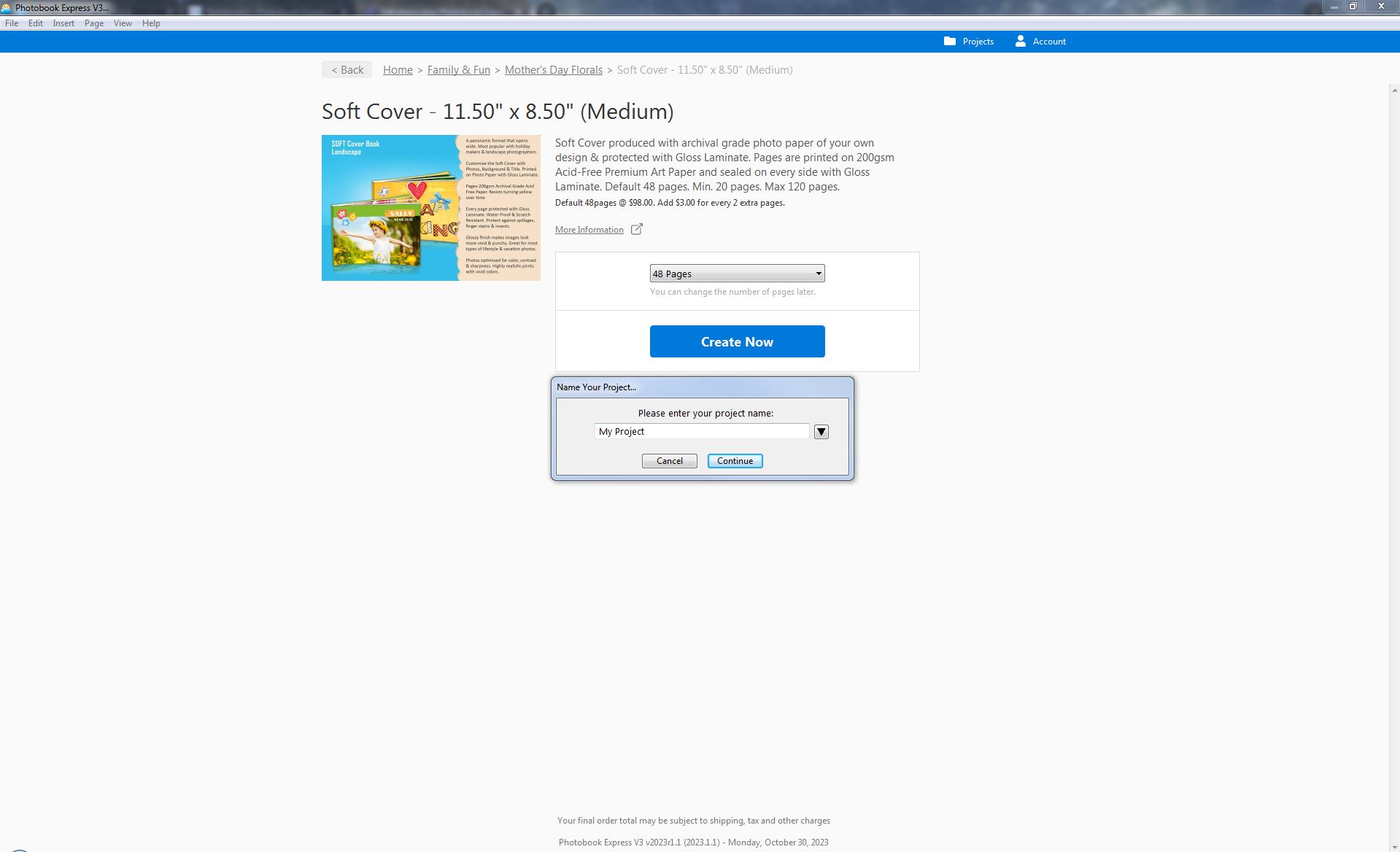
Step 9 – After select the mode you preference, you will ask to Name your Project (Example: XXX Trip 20xx)
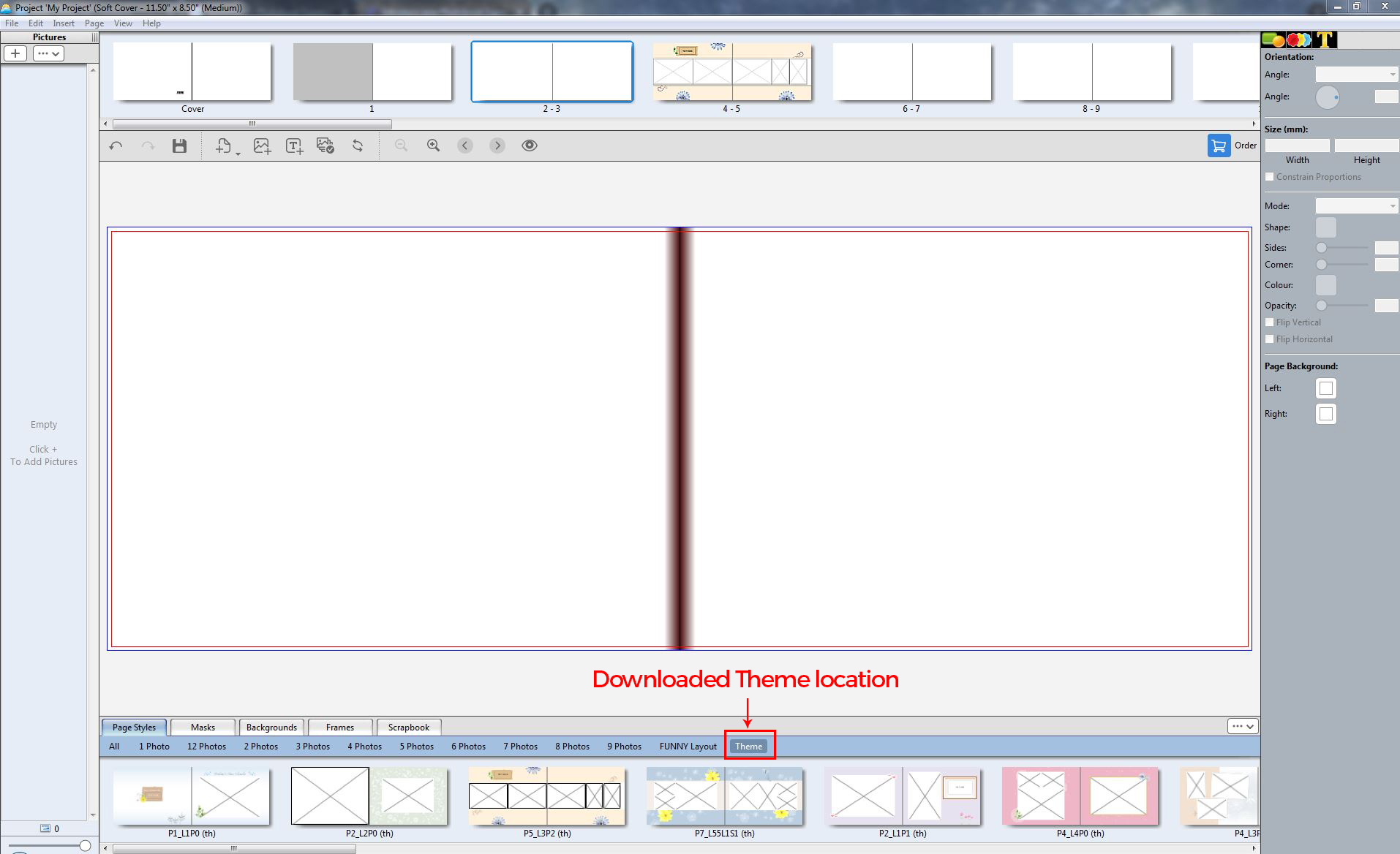
Step 10 – After Naming your Project, Photobook Express Software will relaunch and Congrats, you successfully download the theme, the theme will appear at the Page Styles > Theme (Picture shown use Editor mode as reference)
Frequency Ask Question
What to do when anti-virus Prompt?
If anti virus prompt, click “Allow app” to continue to use the Photobook Express, this usually happen due to Photobook Software need access to your photo folder, and your anti virus have strong protection over your folder. (similar to whatsapp when you select photo it will ask you allow whatsapp to access your photo)